Guides · Christmas ornaments
How to make laser cut map ornaments to sell
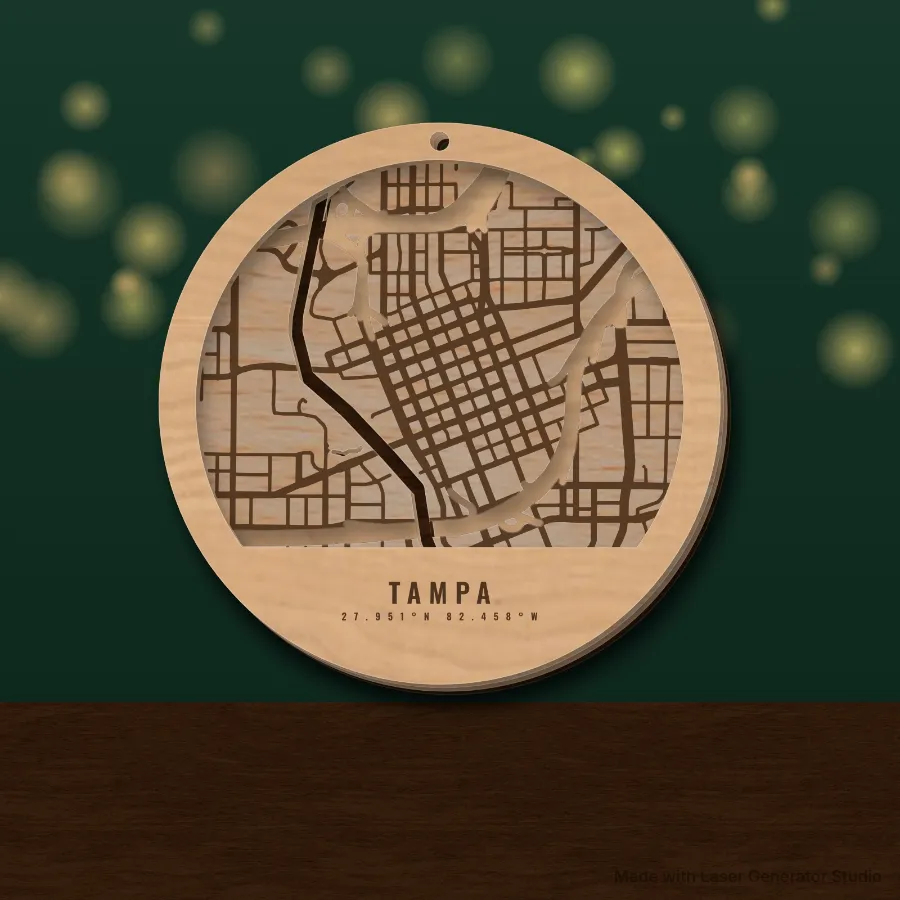
A hometown street-map ornament is one of the most requested laser gifts every December. Each one is a few thin layers of wood: the streets on one layer, the water cut through, and the town’s name and coordinates in a band at the bottom. Here is how to make them quickly and sell them well.
What you need
| Item | Notes |
|---|---|
| A laser | Any diode or CO2 laser that cuts thin plywood: xTool, Glowforge, OMTech and others |
| Thin plywood | 3 mm birch works well. For a lighter ornament, use 1.5 to 2 mm and set the material thickness to match |
| Wood glue | A thin bead between layers; clamp or weight them while it dries |
| Ribbon or twine | Through the hanging hole at the top |
Step by step
- Open the street map generator and search for the town, or a street, school or wedding venue.
- Choose the ornament shape. Under Shape, pick “Christmas ornament”. The map becomes a 90 mm round with a hanging hole, a thin border and a flat-bottomed title band.
- Choose the text at the bottom. Place name and coordinates is the classic look. You can also use the name alone, your own second line such as “OUR FIRST HOME 2026”, or no text for a full round map.
- Frame the area on the Location tab. A neighbourhood of 2 to 3 km across shows streets clearly at ornament size.
- Press Generate and check the layers in the preview, then export with your laser’s preset.
- Cut, glue and stack the layers in order, from the base up, and add the ribbon.
Laser settings
Ornaments are small, so the cut time is short: the engraving of the name is usually the longest part. For starting power and speed on your machine, use the xTool settings chart or your own tested values, and run a test card on the same sheet first. On an xTool P3 with 3 mm birch the chart starts at 60% and 30 mm/s for cutting.
Tip: cut all the layers of several ornaments on one sheet. The export lays them out for you, and the nesting tool can pack more onto offcuts.
Making them sell
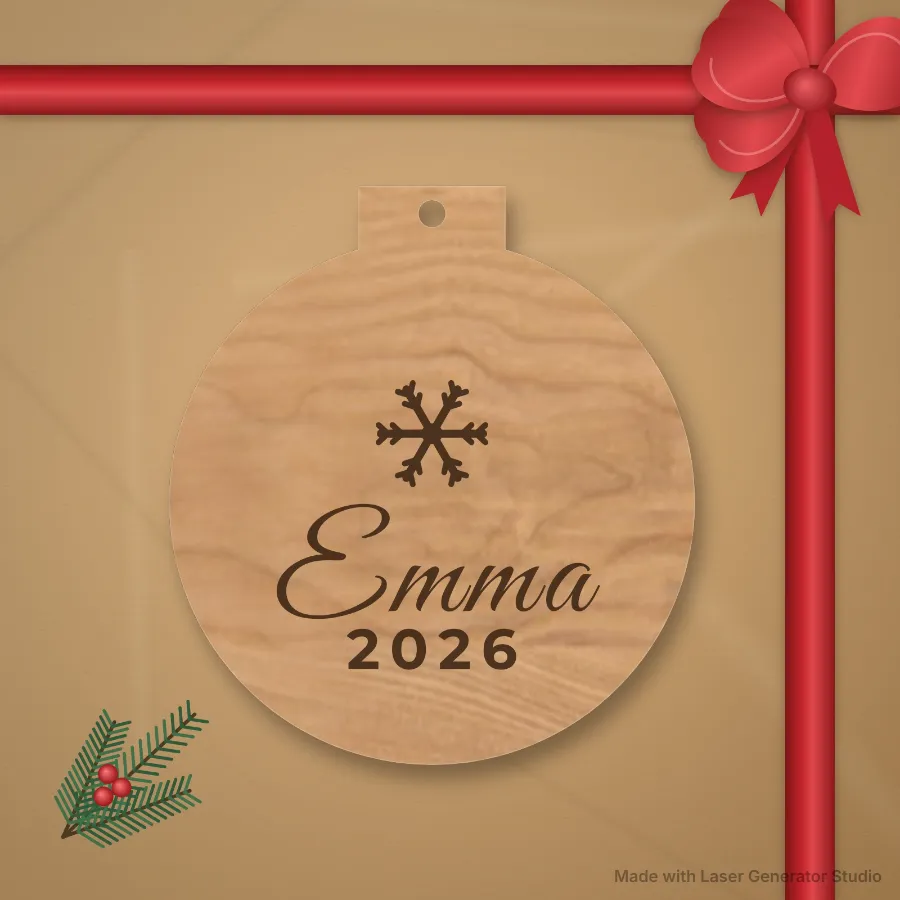
- Offer personalisation. Let buyers choose the town and the second line. Most map ornament sales are for a hometown, a first home or a wedding venue.
- Show a real-looking photo. The export window’s mockups and Etsy listing pack make product photos, a title, tags and a description from your design.
- Price for your time. Material is cheap; design, assembly and packing are not. Work it out with the laser price calculator.
- List early. Buyers start searching for Christmas ornaments in October, and shipping cut-off dates come fast in December.
- Sell a set. A hometown ornament with a matching name ornament makes an easy bundle.
Questions
How many layers does a map ornament have?
Usually three or four: a base, the street layer, sometimes a highway layer, and the frame with the name on top. The preview lists every layer in gluing order.
Can I make it bigger than 90 mm?
Yes. Change the width and height after choosing the ornament shape. Larger ornaments show more streets; keep the framed area wider too.
Can I use the map data in products I sell?
The streets come from OpenStreetMap, which allows commercial use as long as it is credited. Add “Map data © OpenStreetMap contributors” to your listing or packaging card; the assembly notes that come with every street map export include this line, ready to copy.
What if the town name is long?
The text shrinks to fit the band. If it gets too small, raise the title band height or use a shorter name, such as the neighbourhood.
xTool, Glowforge and OMTech are trademarks of their respective owners. Laser Generator Studio is an independent product and is not affiliated with or endorsed by them.