Inlay & Kerf Offset · Laser Generator Studio
Laser Inlay Generator: Kerf-Compensated Press-Fit Inlays
Kerf-compensated pocket and insert pairs for perfect press-fit inlays, plus offset outlines that grow or shrink any shape or SVG by an exact distance.
- Exports
- SVG, DXF, PDF, EPS
- Works with
- LightBurn, xTool Creative Space, Glowforge
- Materials
- Birch plywood, walnut, maple, acrylic
What it makes
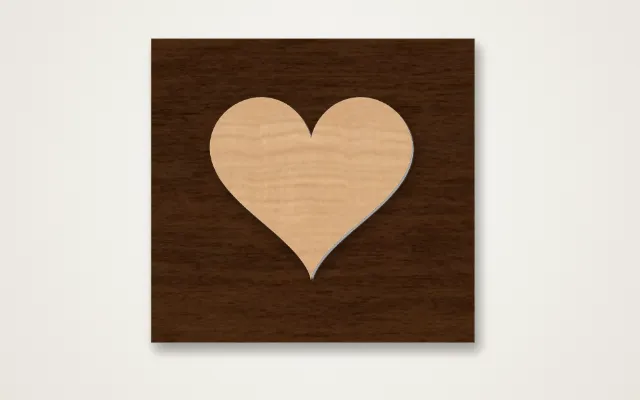
The Inlay & Kerf Offset studio makes press-fit inlays that fit first time. A laser removes a thin line of material as it cuts, so a pocket and an insert cut from the same outline never quite meet. The studio shrinks the pocket and grows the insert by half your kerf, so the insert presses in tight. It also has an offset outline mode that grows or shrinks any shape by an exact amount.
The settings
| Setting | What it does |
|---|---|
| Shape | Heart, star, circle, letters or your own SVG |
| Kerf | The width your laser removes, from the kerf gauge |
| Fit | Fine tuning: positive is looser, negative is tighter |
| Offset distance | In outline mode: how far to grow or shrink the shape |
How it works
- Choose a shape or drop in your own SVG.
- Enter your kerf, measured with the kerf gauge.
- Adjust the fit in small steps if needed.
- Cut the pocket from one material and the insert from a contrasting one, then press it in.
Tips for perfect inlays
- Measure the kerf on the same material. The kerf calculator and test cards make it quick.
- Cut both parts with the same settings and focus as the kerf test.
- Contrast is everything. Walnut in maple, or black acrylic in clear, shows the shape best.
- Sand flush. Press the insert in, glue if needed, then sand the surface level.
Same kerf, different materials: the kerf changes with material and thickness. Measure it for each material you inlay.
Export
The pocket and insert export as separate layers in SVG and DXF. To fit many inserts on one sheet, use the nesting tool.
Questions
Why do my inlays come out loose?
The laser removes a thin line of material, the kerf. A pocket and insert cut on the same line end up one kerf apart. The studio moves the pocket inward and the insert outward by half the kerf so they meet.
How do I measure my kerf?
Use the kerf gauge in the laser test cards, or the kerf calculator. Cut it with the same material, settings and focus you will use for the inlay.
What does the fit setting do?
Positive values make the fit looser, negative values tighter. Start at 0 and change it by 0.02 to 0.05 mm at a time.
Can I use my own design?
Yes. Use a built-in heart, star, circle or letters, or drop in your own SVG.
What is offset outline mode?
It grows or shrinks any shape by a set distance, which is useful for borders, sticker backers and mounting plates.
xTool, LightBurn, Glowforge are trademarks of their respective owners. Laser Generator Studio is an independent product and is not affiliated with or endorsed by them.